Android TV Remote Keyboard: Type or Use the D-Pad?
An Android TV remote keyboard is useful when the task is to enter text. It is less useful when you are choosing a tile, moving through a menu or confirming a dialog. Start by identifying the control the TV currently expects, then test a small action before entering a long query or password.
When an Android TV remote keyboard helps
A search field is a good place for a simple test. Open the field on the TV, enter a short, non-sensitive word from your phone and check whether the text appears where expected. Do this before using the same approach for account details.
Google’s official virtual-remote documentation lists phone-keyboard input among the controls available for supported Google streaming devices. That documentation describes Google’s apps and supported hardware. It does not establish that every text field, TV brand or third-party remote works identically.
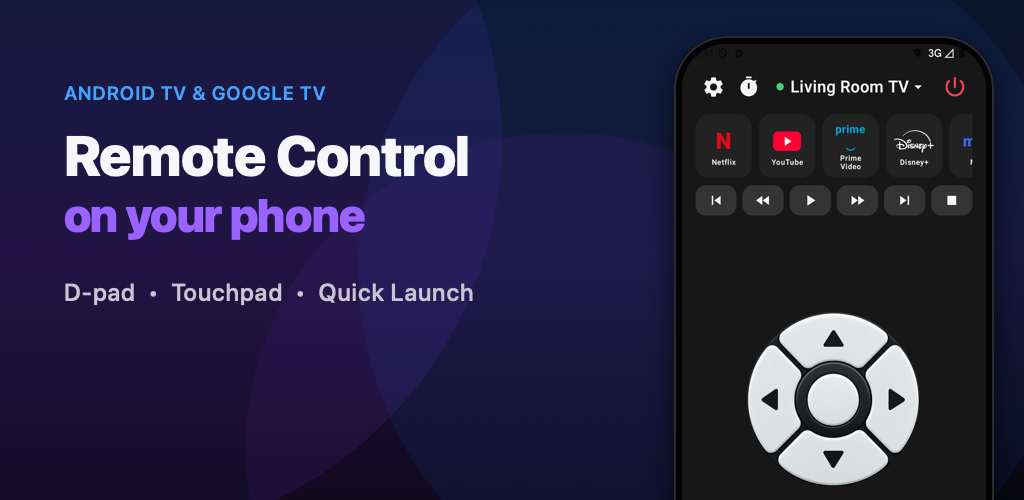
Remote Control provides D-pad, touchpad and keyboard controls for Android TV and Google TV. Features vary by TV vendor and model. The steps below are a way to diagnose the task in front of you, not a guarantee that a particular app will accept text.
Check focus before typing
Use the directional controls to select the field you want. Look for the visible cue the TV provides, such as a highlighted box or an insertion cursor. If the screen is still showing a grid of movies, sending text may not have an obvious destination.
Type one or two characters and pause. If nothing appears, avoid sending the whole phrase repeatedly. Select the field again and try a short test. When the screen offers its own keyboard, you can also use the D-pad to enter a character there and compare the result.
This comparison separates two questions: can you navigate to the right place, and does the field accept text through the control you selected? Keep a note of the app and screen where it fails so that a later check can reproduce the same situation.
Use the D-pad for discrete choices
Directional controls are useful when the interface consists of individual tiles, buttons or menu items. Move one step, watch the selected item, then confirm. During a diagnosis, quick repeated taps make it harder to know whether the selection moved once, twice or not at all.
After entering a search term, you may still need to select a search button or choose a result. Treat that as a separate navigation step. A working keyboard does not remove the need to understand what the currently highlighted control will do.
Test touch controls with a visible reference
When using a touchpad, begin with a short movement while watching the TV. Note which item becomes selected. If you cannot predict the result, switch to the D-pad while you complete the task rather than adding more gestures to the uncertainty.
For example, entering a programme title may use the keyboard, selecting the first result may use the D-pad, and browsing a broader grid may be comfortable with touch controls. The choice can change during one session; it does not have to be a permanent preference.
Separate input problems from connection problems
If directional controls still work but typing does not, record that distinction. Try another ordinary text field where available. If no control responds, return to the connection troubleshooting guide instead of changing keyboard settings at random.
For sensitive entries, confirm the target screen and avoid leaving passwords visible in notes or screenshots used for support. Do not disable network or account protections simply to make an input test easier.
Keep a repeatable check
Use this sequence: open the desired screen, select the field, send a short test, inspect the result, then complete the task. If it fails, record the TV model, the application and which controls still respond. That is more useful than a general report that “the remote does not work”.
The Remote Control product page links to further guidance. Choose the control that matches the immediate task, and verify its effect on the actual television before assuming the next step will behave the same way.